
Missing important emails because they end up in your spam folder or everywhere else except in your In Box? You may need to “White List” our sender email address info@themidaslegacy.com to your email account. Here are the steps on how to white list an email so that you may get your important newsletters, announcements, updates, etc. directly to your In Box!
This tutorial covers Gmail, Yahoo/Rocketmail, Earthlink, Aol, Comcast, ATT.net, Microsoft Outlook, Verizon, MSM, Live, and Hotmail. For those not listed here, either contact your email provider or just add our email address (info@themidaslegacy.com) to your contacts to ensure you receive our important email communications.
Gmail
1. This is the page you should see after you have signed into your gmail account.
2. Click on the dial to the right of your emails home page and select settings highlighted in grey (as demonstrated below)

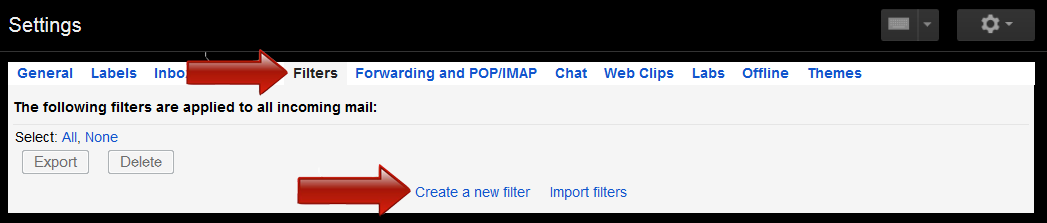
3. Once your in settings click on FILTERS then click on CREATE A NEW FILTER highlighted in blue (as demonstrated below)
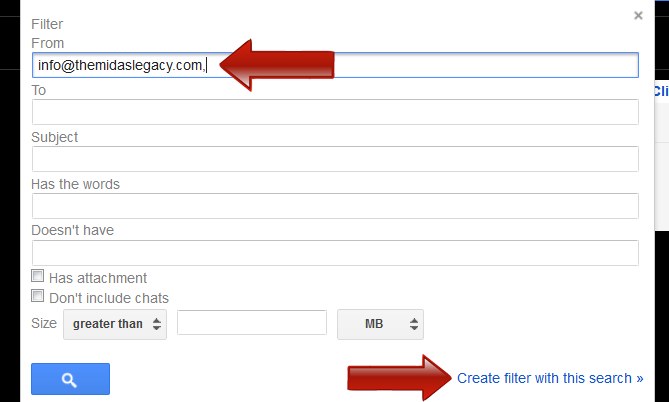
4. Once the form pops up in the From section type info@themidaslegacy.com, proceed to the bottom of the form and select CREATE A FILTER WITH THIS SEARCH highlighted in blue (as demonstrated below)
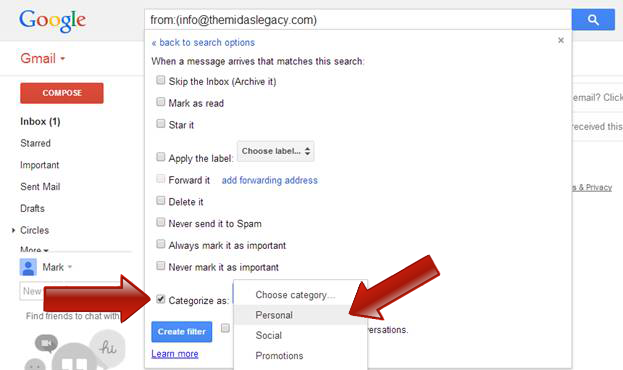
4. The next page will bring you to box selections where you will check on the CATEGORIZE box, select CHOOSE CATEGORY, then select PERSONAL highlighted in grey. When finished you will select CREATE A FILTER (as demonstrated below)
5. From now on your emails from The Midas Legacy will be directed to your Inbox rather than any other folder. Enjoy!
Yahoo/Rocketmail
1. This is the page you should see after you have signed into your Yahoo/Rocketmail account.
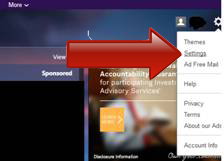
2. Click on the dial to the right of your email’s home page and select settings (as demonstrated below)
3. Select FILTERS on the following page. This will bring you to this form below. Click on ADD (as demonstrated below)
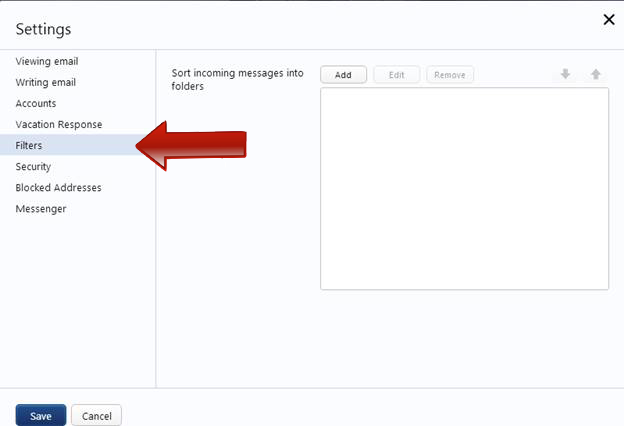
4. Once you have selected ADD, In the next form under FILTER NAME you will need to type info@themidaslegacy.com. Under SENDER make sure the Contains box is selected and to the right in the box type in info@themidaslegacy.com and select the box called Match Case on the top right of this field.
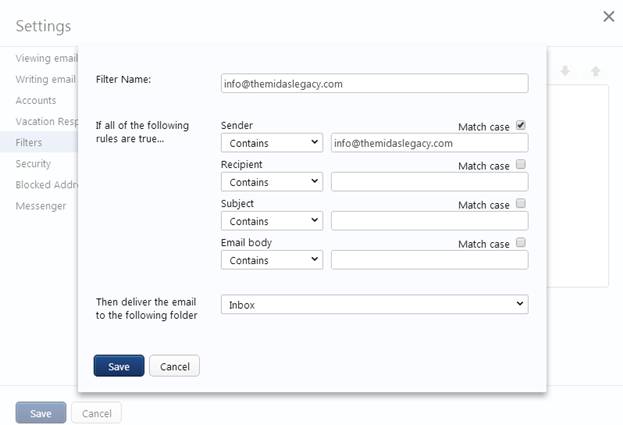
5. Click Save and Presto! All Your emails from The Midas Legacy will now be directed to your email’s In Box. Enjoy! (as demonstrated below)
Earthlink
If you are not receiving email to your Earthlink account, it may be being intercepted as spam.
There are two things you can do to make sure you get emails from the people and domains you want.
- Check Your Suspect Email Folder: Find an email from the sender you want to white list and select the Move to Inbox and Add Contact option from the pull down menu. This will add the Sender’s email address to your Address Book for future email delivery.
- Add A Sender To Your Address Book: Open an email from a Sender you want to white list. Click Add to Address Book in the email header. Use the Address Book Editor to verify the sender’s contact details and click Save. Enter the email address of the Sender. Any mail sent with the same domain
AOL
To make sure email gets delivered to your AOL inbox, you must add the email address or corporate domain of the sender to your Address Book or Custom Sender List.
1. Click the Spam Controls link on the lower right side of your inbox screen.
2. When the Mail & Spam Controls box appears, click the Custom Sender list link.
3. Choose the Allow email from … (Sender) option.
4. Then click Add.
5. Click Save.
White listing Senders And Domains Using AOL Web Mail
If you are using AOL web mail, simply replying to an email from the Sender you want to white list will automatically add the list as a safe sender. Email from that domain will now be delivered straight to your Inbox
Comcast
1. Click on the Save Address link at the top of the message (next to From Address).
2. Enter information in the name fields (i.e., First Name).
3. Click Save Entry.
ATT.net
1. Open the email message from the sender you want to add to your address book.
2. Click on the Save Address link next to the From address.
3. Check the Add to Contacts box and click Save.
Microsoft Outlook (versions 2003 or Higher)
1. Add The Sender to Address Book: Open the email. Right click on the From address. Choose Add to contacts option. (You can also do this by opening the Address Book and adding a contact manually there.) Or
2. Add Domain To Safe Sender List: Right click on a non-displaying image in an HTML email. Choose Add the domain to the safe sender list option. (You can also do this by clicking on the Junk dropdown menu and selecting Never Block Sender or Never Block Sender’s Domain.)
Verizon.Net
1. Check your spam filters in Verizon Netmail. You should also check the spam filters within your local email client (such as Microsoft Outlook).
2. Check your Spam Detector folder in Verizon Netmail.
3. If these steps do not resolve the issue, it may be that Verizon Online’s spam-blocking procedures have blocked the email from that sender. You may submit a “white list” request to have the block lifted.
MSN/Live.Com/Hotmail.com
To white list email senders and domains in Hotmail Live, Windows Live or MSN, you can do one of two things:
• Check The Junk Folder: If email from “a Sender you want to white list is in this folder, click Show content to view the body of the email. Click Mark as safe. The Sender will now be added to your list of Safe senders.
• Manually Add to Safe List: Click Options in the upper right corner of your Hotmail screen. In the body of the page under Junk e-mail click the link Safe and blocked senders. Click the link Safe senders. Enter the email address you want to white list. Click Add to list.
All Other Email Accounts
**Either contact your email provider or just add our email address to your contacts to ensure you receive our important newsletters and any communications coming from our company to you.


